Adding participations
You cannot create a label without participations.
Participations
This section explains how to enter your participations correctly.
Step 1
In Shopify, go to Apps → Post & DHL Shipping.
Step 2
You are now on the app dashboard.
-
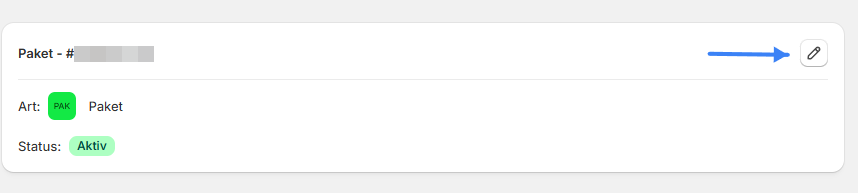
Your active DHL accounts are shown here. Select Edit or the pencil icon in the top-right corner.
-
If no active DHL accounts are shown on the dashboard, select Accounts to open the overview of all stored accounts.

Step 3
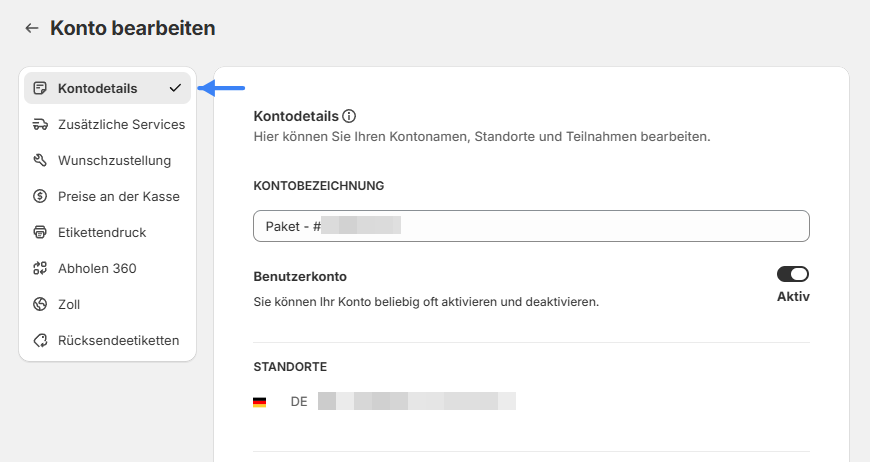
Select Account details so that you can add participations.
Step 4
You are now on the page containing the relevant account details.
-
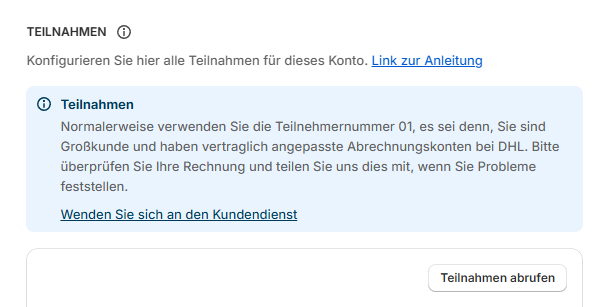
Retrieve your billing numbers automatically through the DHL interface by selecting Retrieve participations in the Participations section.
-
You can also enter participations manually. Enter either the final two digits of the billing number, for example
01, or the complete billing number, for example00000000000101. Select the corresponding product, such asV01PAKforParcel Domestic, and then select Add. The details are saved after the system has checked that they are valid. warning
In most cases, the participation number is
01. An exception may apply if you are a large customer and have contractually modified DHL billing accounts. If you experience problems, check your invoice and contact customer support.
Step 5
(Optional) To add Parcel International, enter 01 in the Participations field, select V53WPAK for Parcel International, and then select Add.
Step 6
(Optional) To add a participation for Warenpost, enter 01 in the Participations field, select V62WP for Warenpost, and then select Add.
Step 7
(Optional) To add a participation for Warenpost International, enter 01 in the Participations field, select V66WPI for Warenpost International, and then select Add.
Step 8
(Optional) If you have already activated Parcel or Parcel International, you can also activate Returns. Enter 01 in the Participations field and select V07RET.
Step 9
(Optional) To use additional services, enable them in the corresponding categories and define their default values.
Step 10
To complete the process, select Save at the bottom of the page.
Where can you find the billing numbers?
Step 1
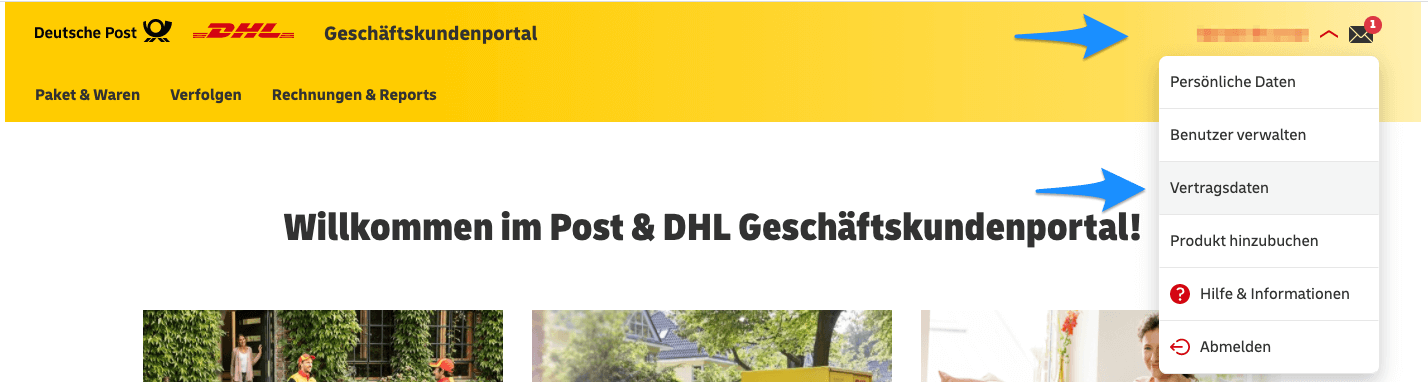
Open the DHL Business Customer Portal and sign in with your user account.
Step 2
Select your name in the top-right corner and then select Contract data.
Step 3
Scroll down the page to the billing numbers. The last two digits of a number are its participation. Add these to the app settings as described above.
(Optional) Under Alternative shipper, you can see the billing numbers that may be added in advanced mode, if available.