Internetmarke
Information
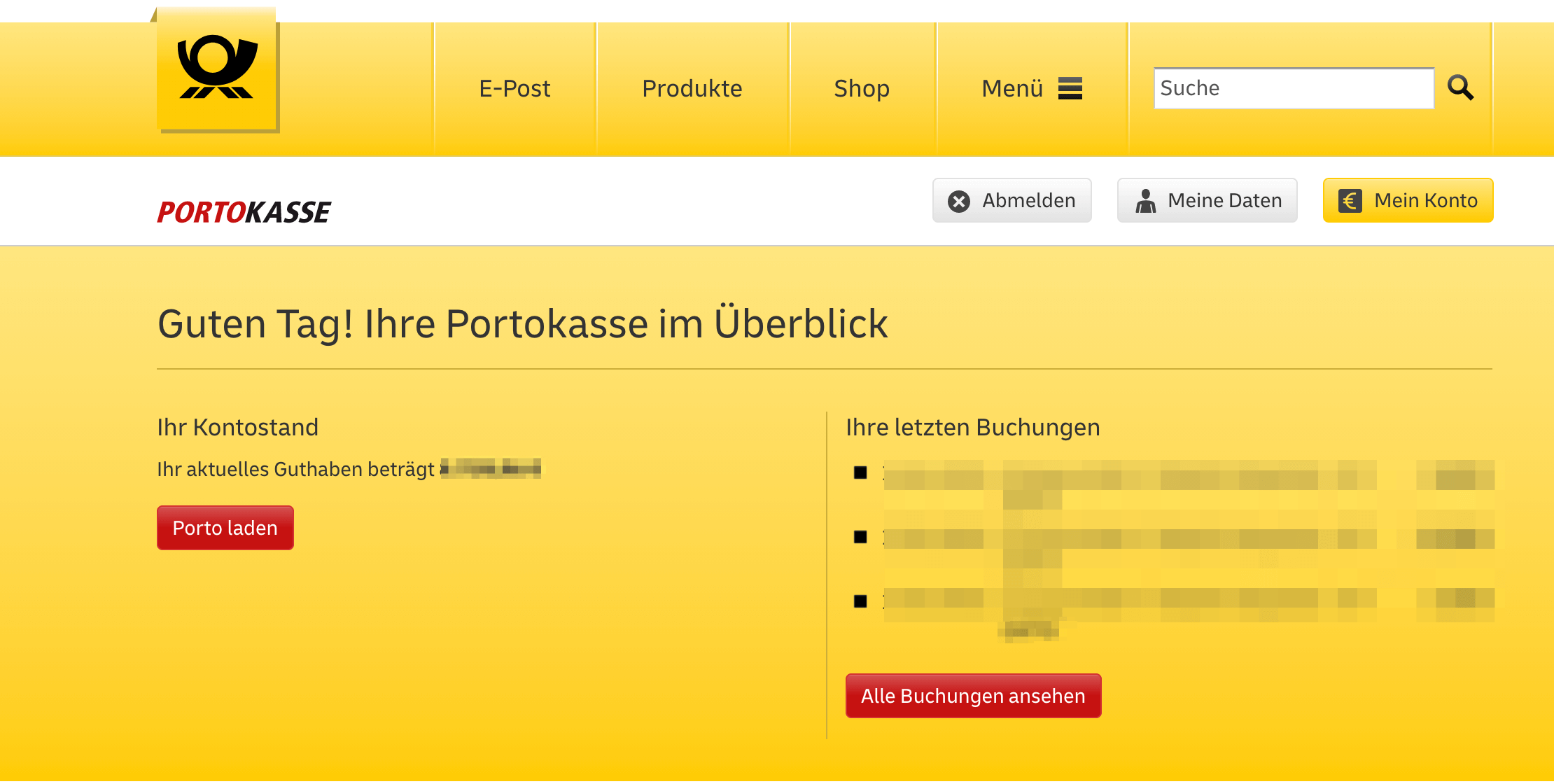
Internetmarke can be used for Warenpost International shipments weighing up to 2 kg. Domestic Warenpost is available through DHL. Internetmarke is easy to use: simply register for an Internetmarke Portokasse account.
Payment is made through this account. You can top up the balance with any amount. A price list is available here.
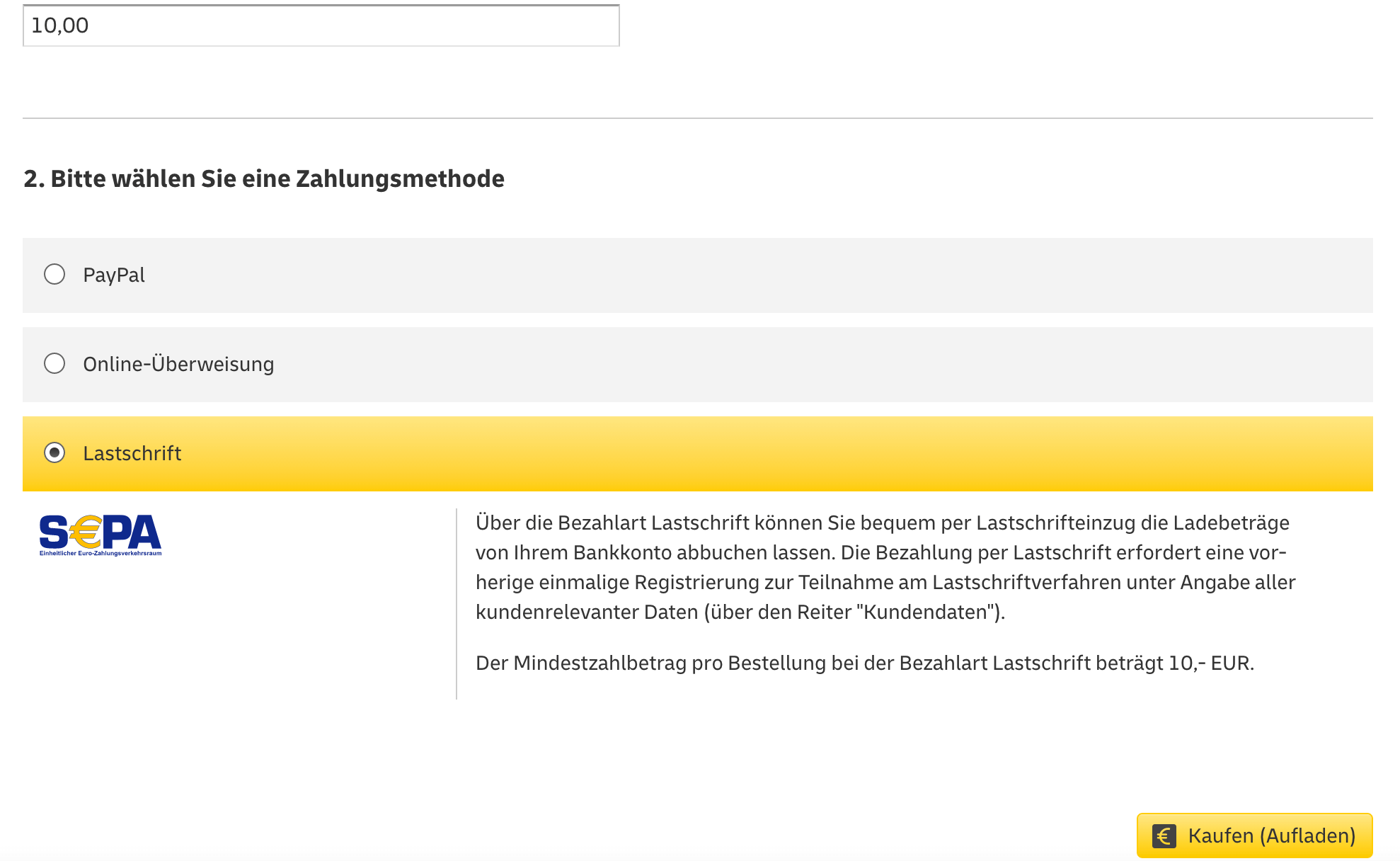
You can choose from different payment methods:
Integrate Internetmarke into the app
Step 1
Open the Post & DHL Shipping app.
Step 2
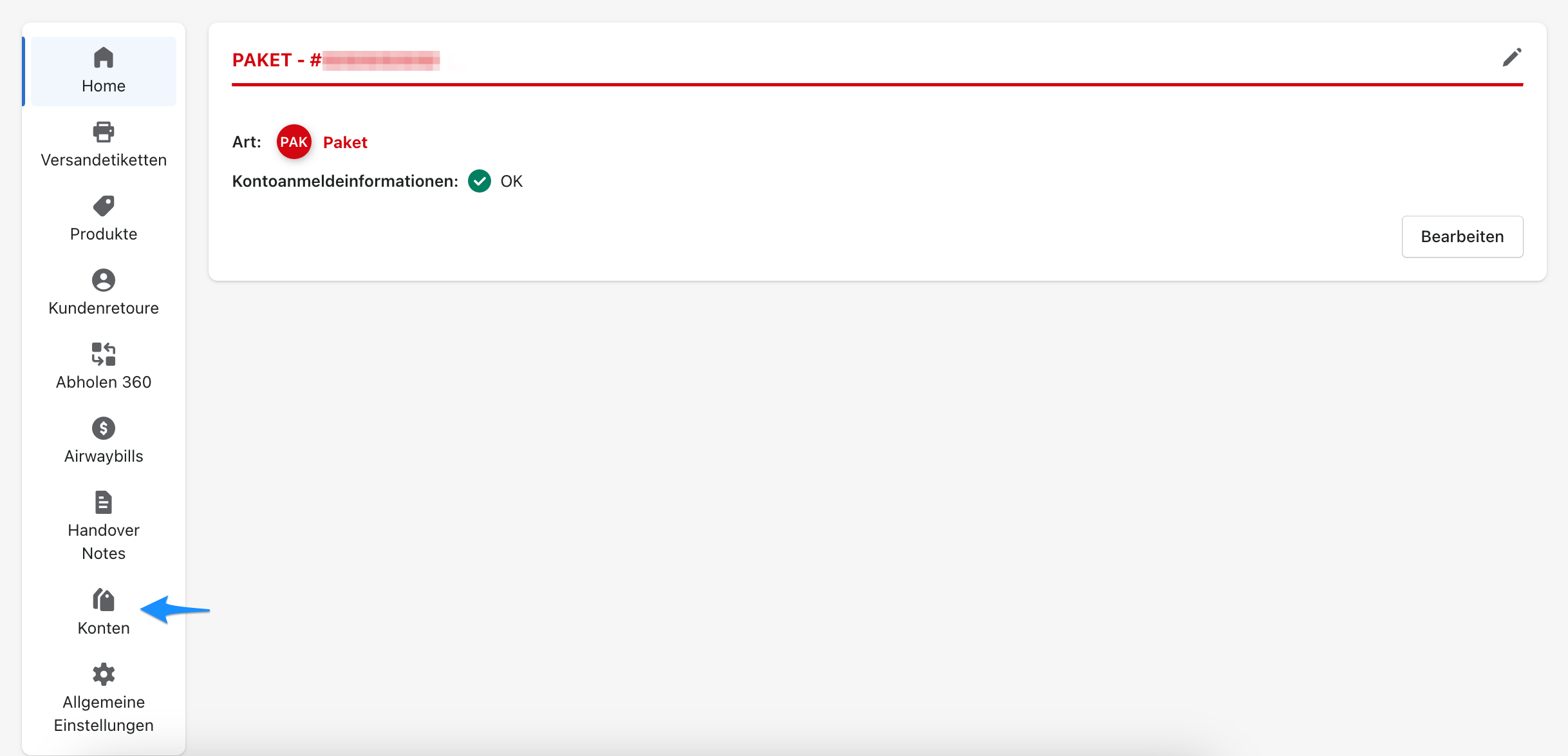
On the dashboard, select Accounts.
Step 3
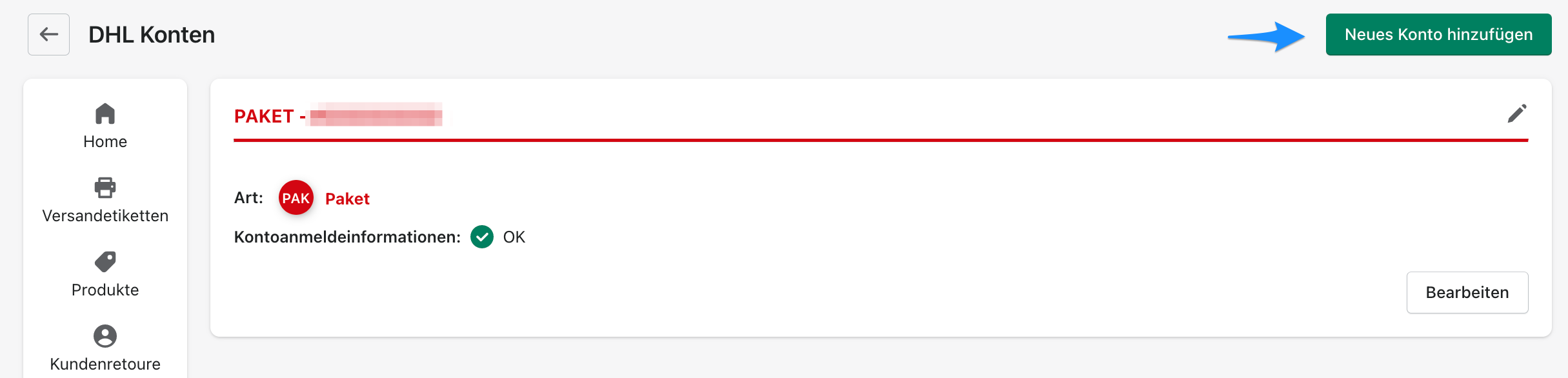
Select Add new account in the top-right corner.
Step 4
Select Internetmarke as the account type and sign in with the same credentials you used to register on the Deutsche Post website.
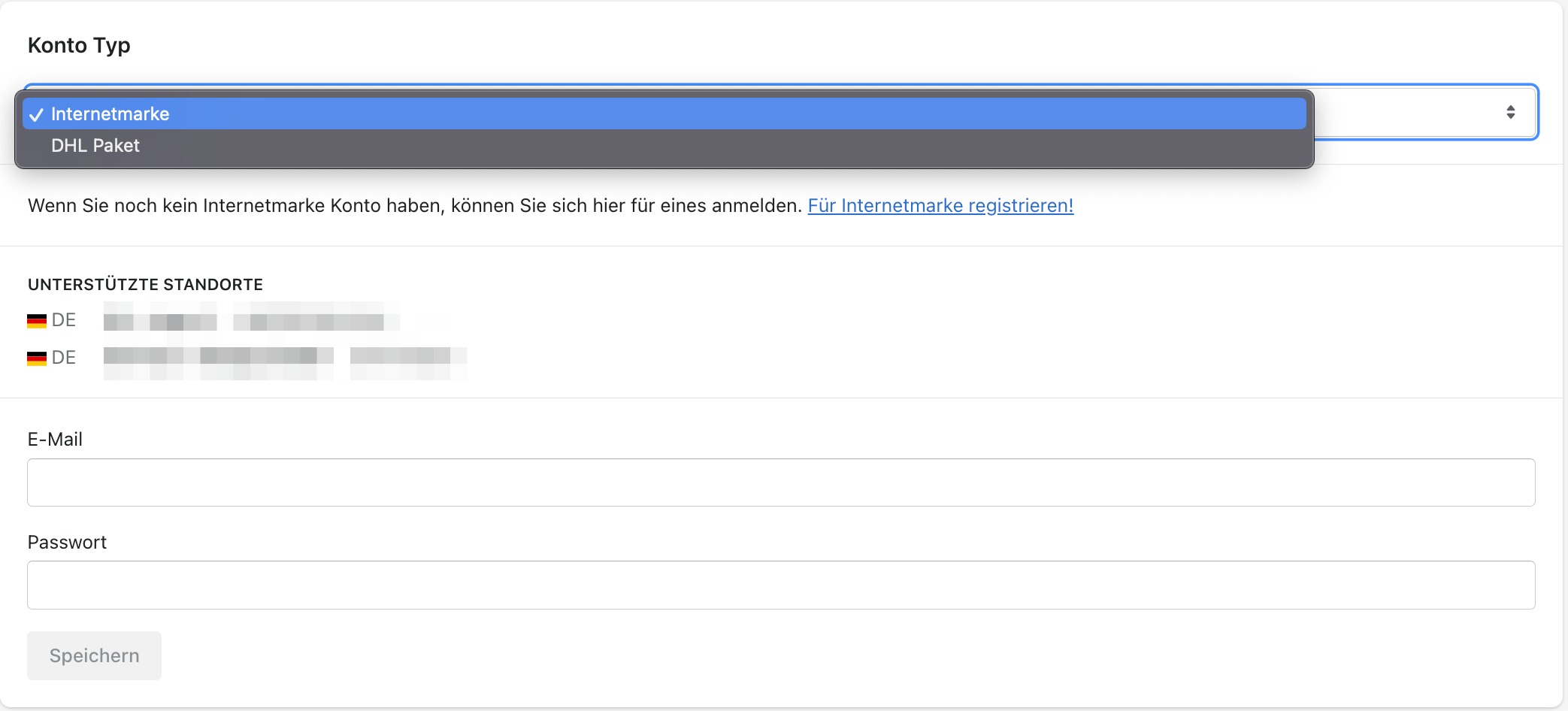
Step 5
The Internetmarke account is now displayed on the dashboard. Select Edit or the pencil icon in the top-right corner to edit the account.

Step 6
Select Products on the right.
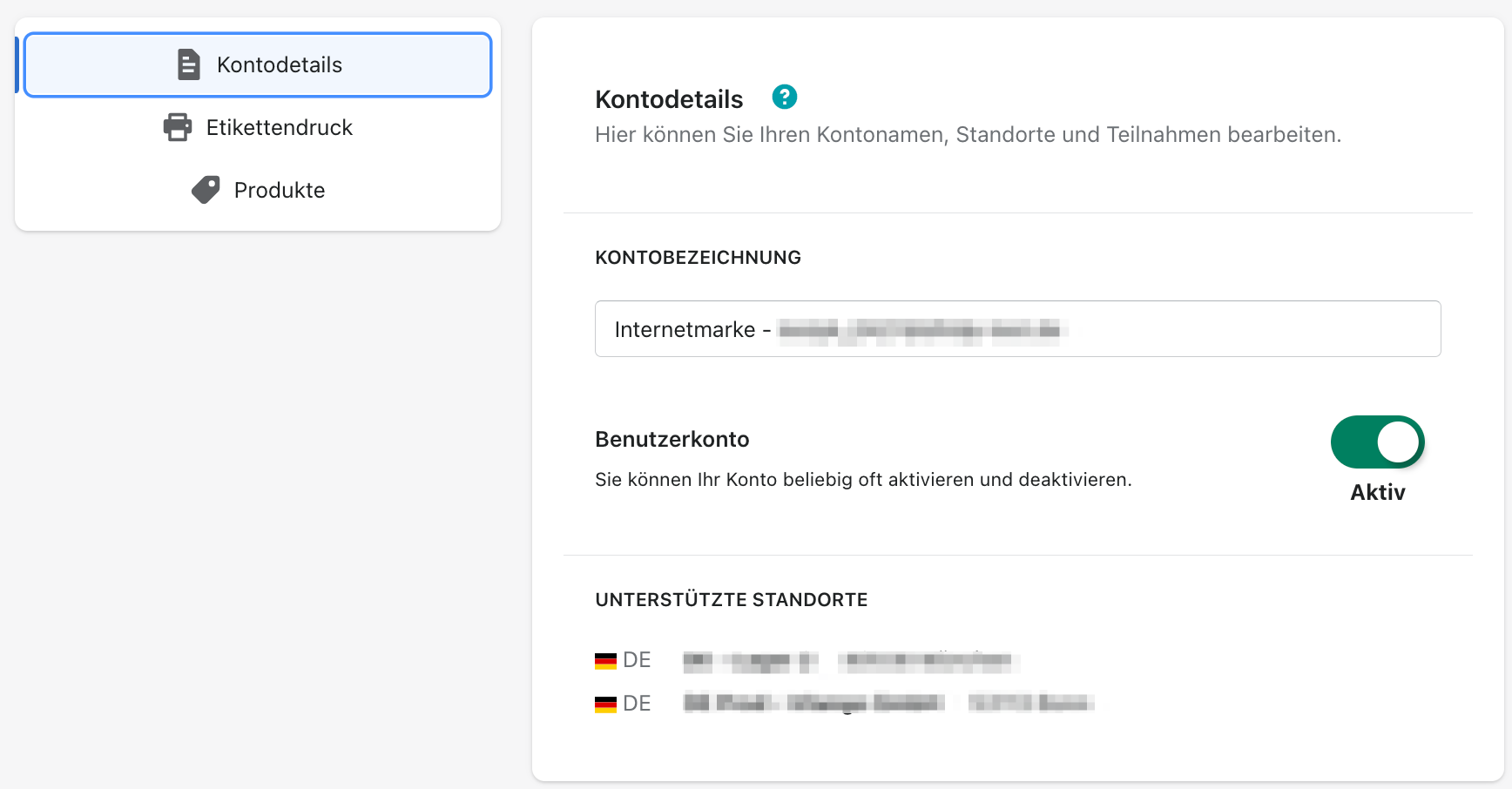
Step 7
Select the products that should be available when creating labels.
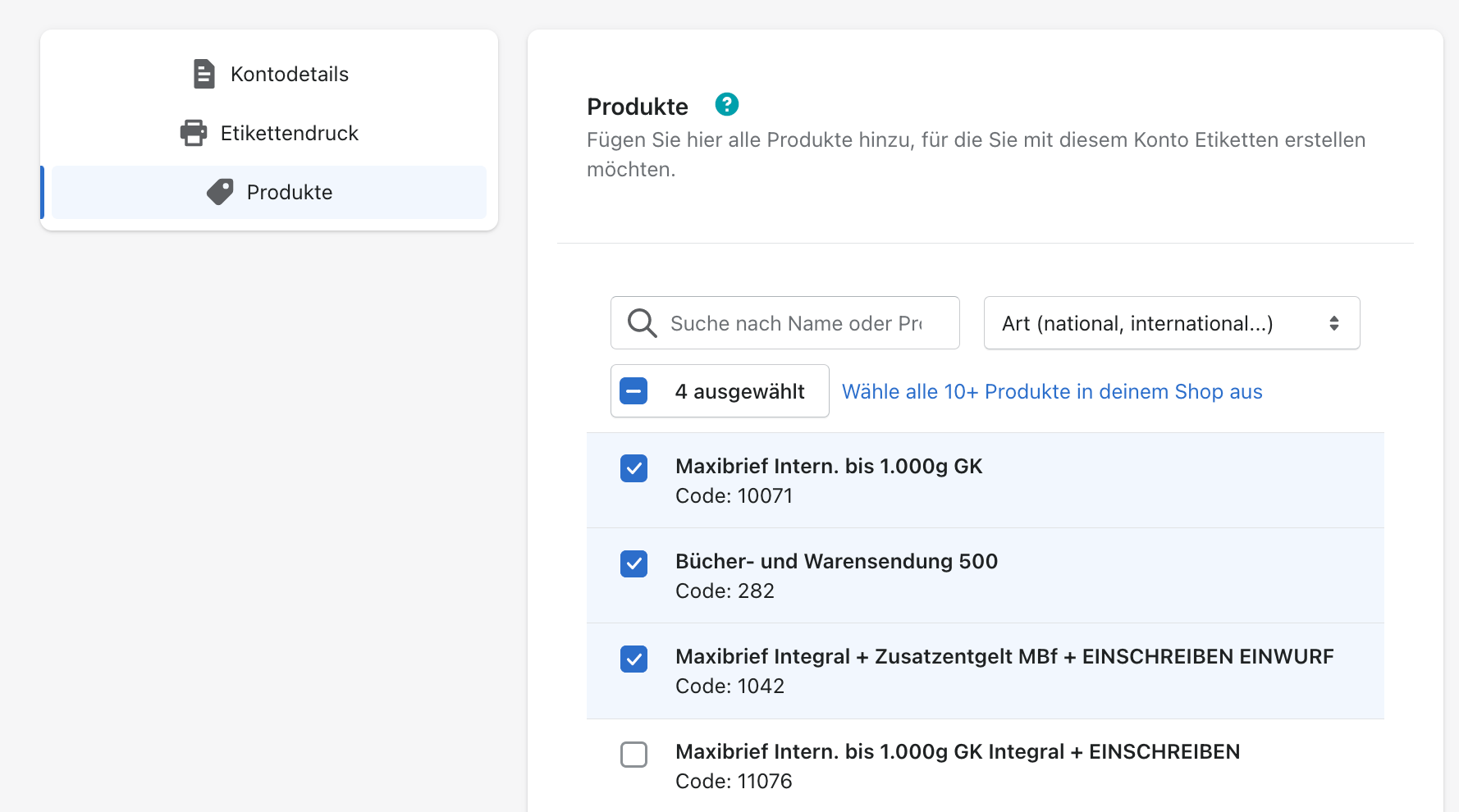
Step 8
Internetmarke labels cannot be deleted in the label creation process. You are charged as soon as a label is created. To cancel a label, contact the cancellation team.
Request an Internetmarke refund
To request a refund for INTERNETMARKE postage, submit a written request within 14 days without needing to provide a reason. This may be sent by letter, fax, or email.
Email the PDF containing the INTERNETMARKE postage to be refunded, together with your refund request, to internetmarke@deutschepost.de.
Deutsche Post will check whether the postage can be refunded as a gesture of goodwill. If approved, the credit is added to your personal INTERNETMARKE Portokasse.
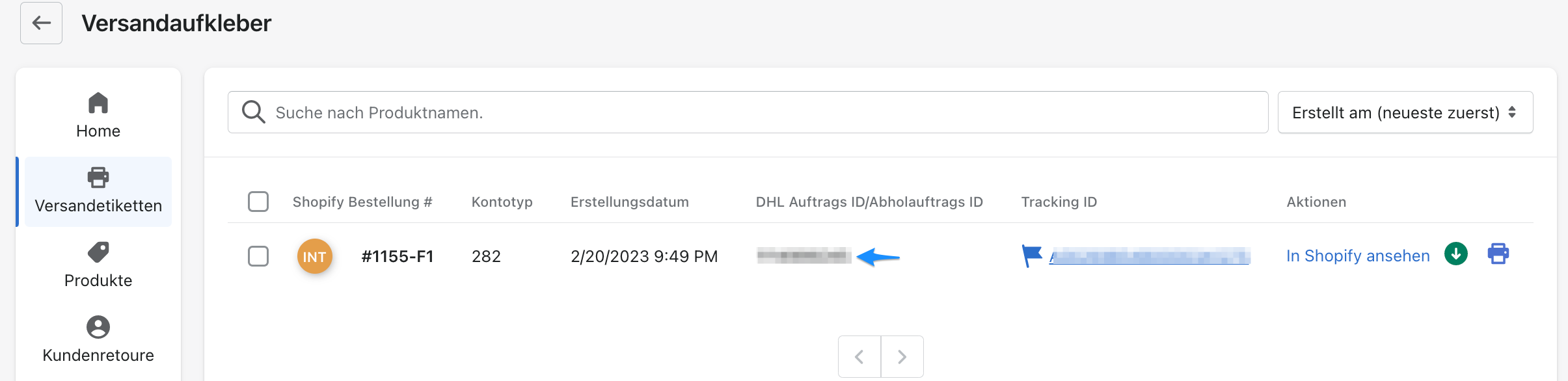
You will generally need the DHL order ID to cancel Internetmarke postage. Follow these steps to find it:
Step 1
Open the Post & DHL Shipping app.
Step 2
On the app dashboard, select Shipping labels.
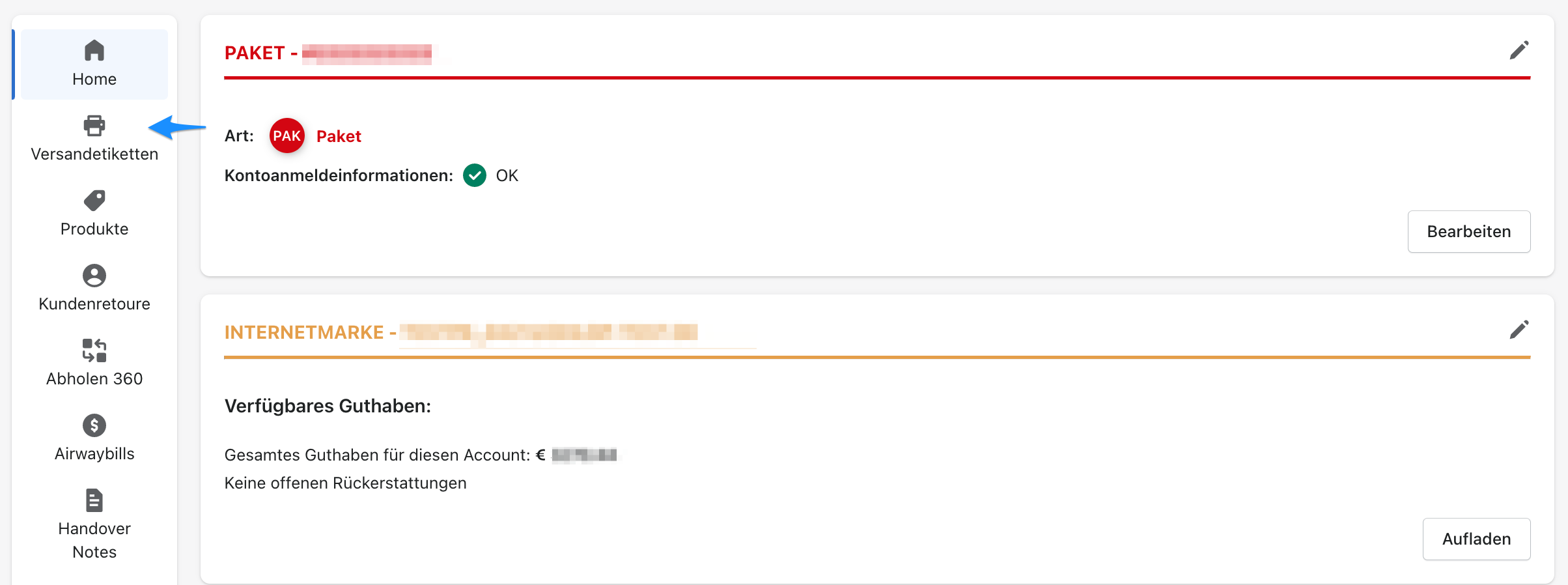
Step 3
All shipping labels created so far are displayed. Find the relevant value in the DHL order ID column.
Label print settings
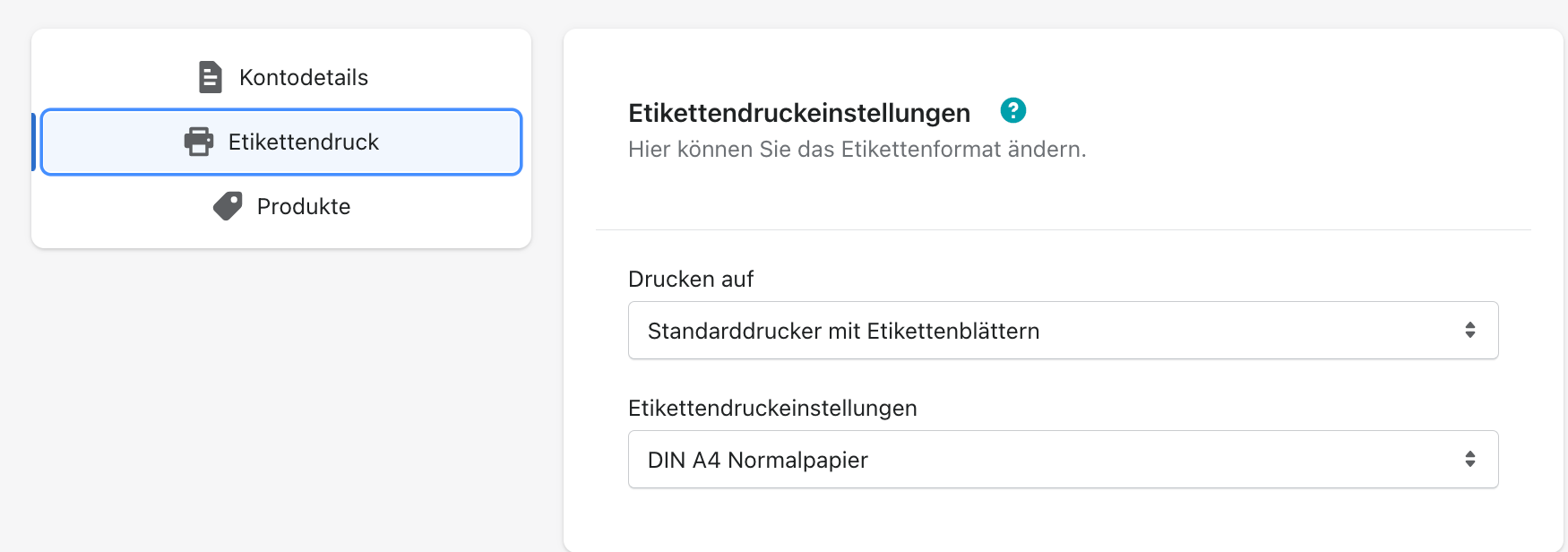
The label printing section contains all settings for the label format. You can change the label size here.
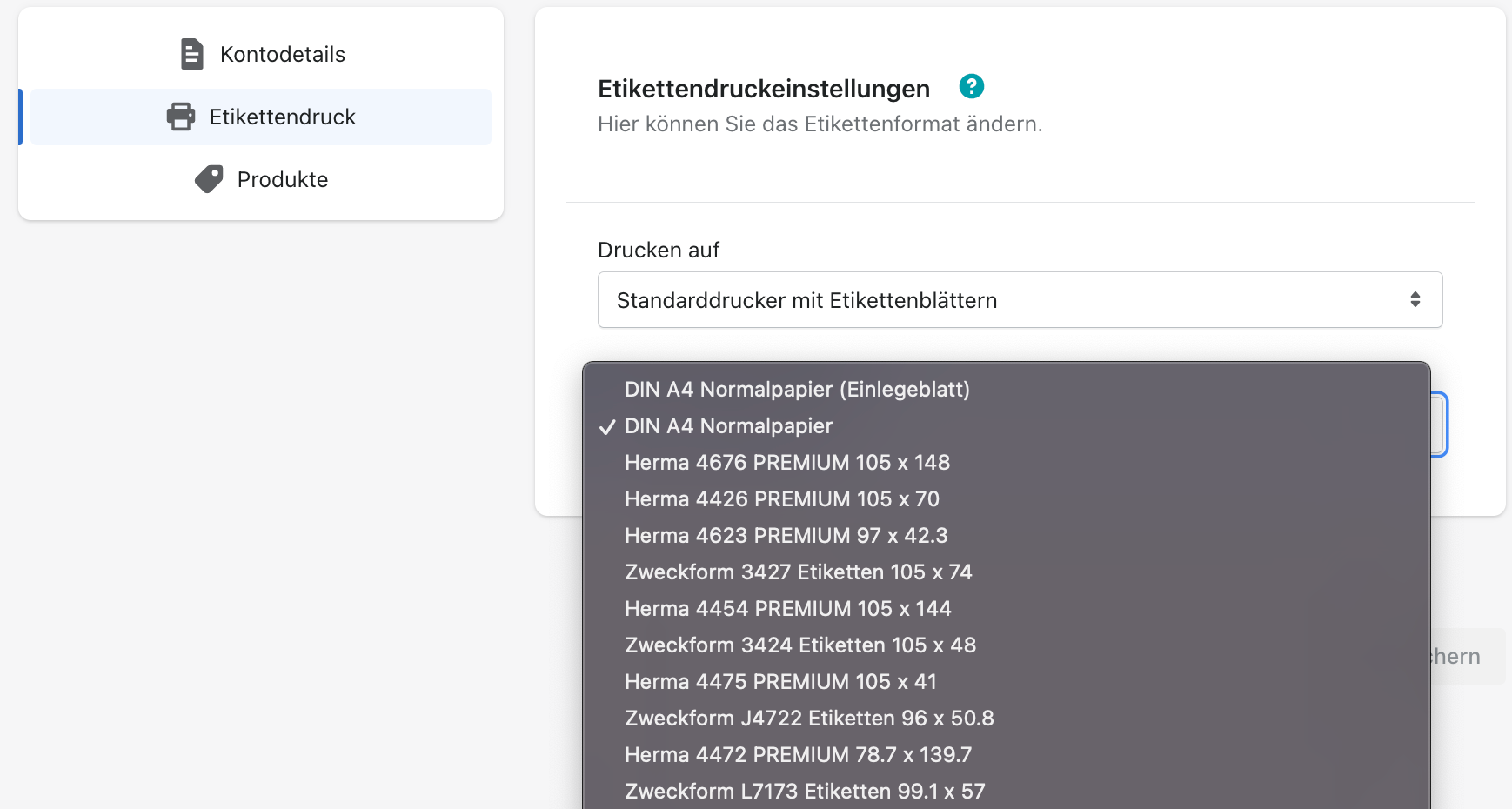
Choose from the available sizes.
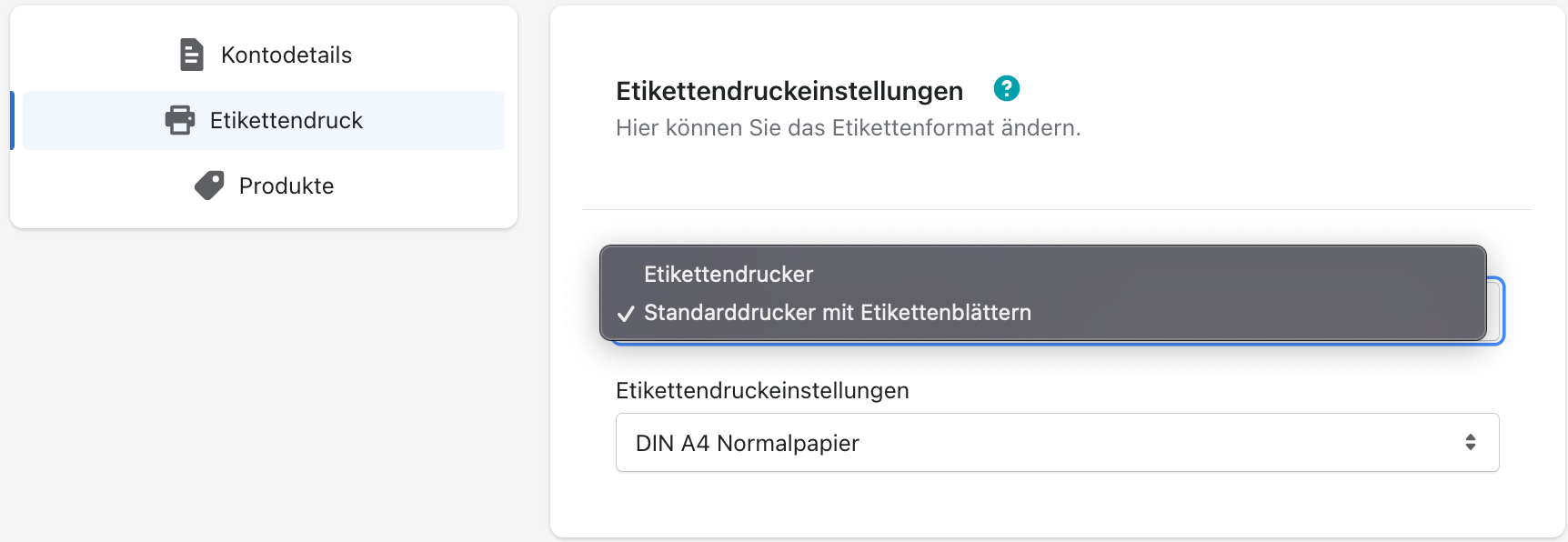
Then select the appropriate printer.
Shipping to non-EU countries
Step 1
Open the Post & DHL Shipping app.
Step 2
Select Internetmarke.
Step 3
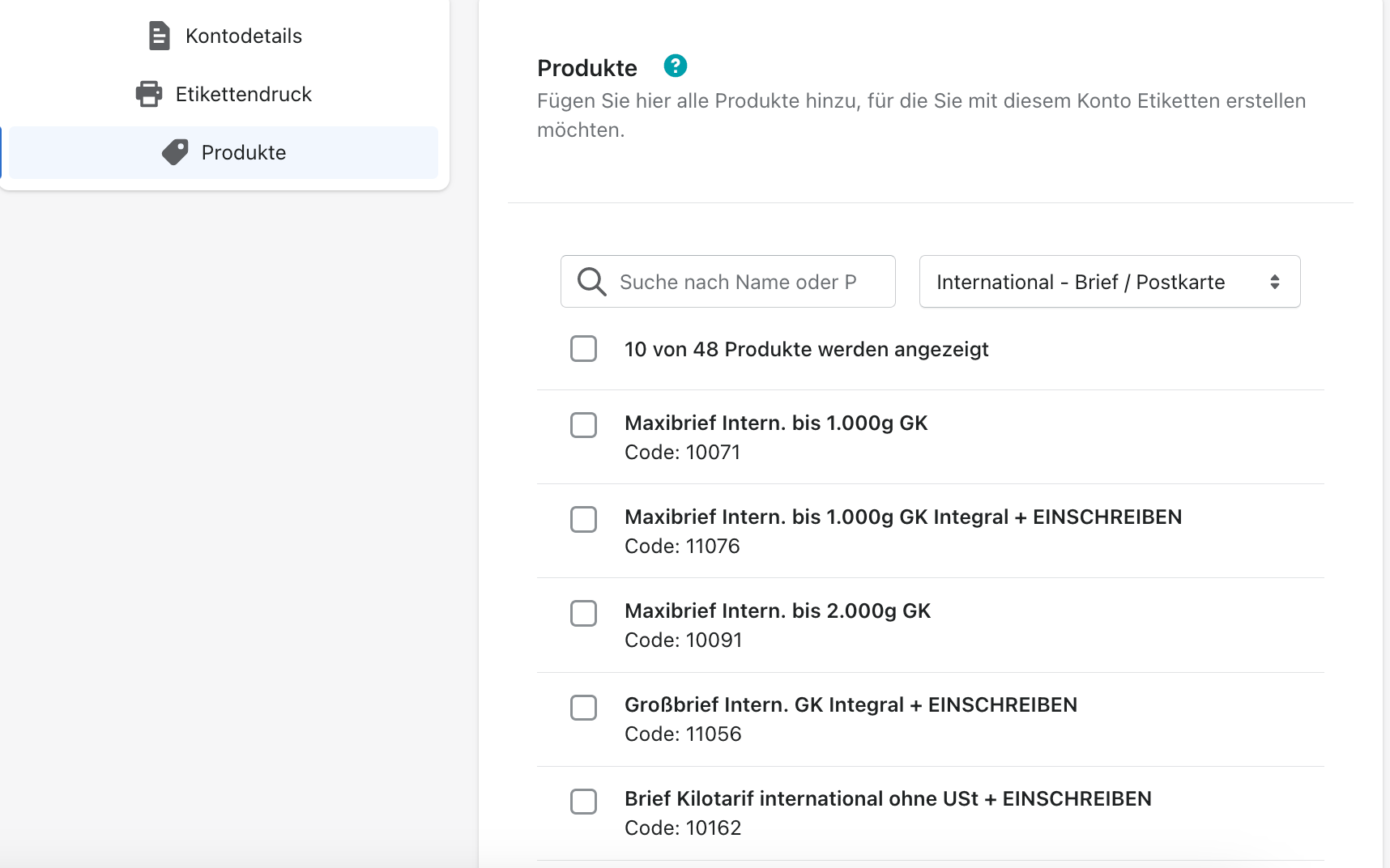
Select the international shipping options under Products.
Step 4
These options are then available during label creation.
Step 5
Save your changes.